
Blog /

For those of you coming to Plan to Eat from other recipe software, we have a new feature that will make your transition to Plan to Eat a little easier. We’re thrilled to unveil it to you!
Our newest feature, Import recipes from files, allows you to import recipe files that have been exported from other recipe programs, sites, or software. Not only is this an import option for individual recipe files, but it also allows you to import recipes in bulk. (hooray!)
This video will show you how it works:
A few details:
- Currently we support files that have been exported from the following:
- Meal Master (mmf) – The exported file from Meal Master does not include images
- Master-Cook (mxp) – The exported file from Master-Cook does not include images
- Paprika
- Living Cookbook (fdxz)
- Ziplist
- HTML
- Plan to Eat – This option requires a paid Plan to Eat subscription.
- If you have a file type different from our current available options we will do our best to add it as an option for you. Please contact us!
- If you upload a large file or have a slow internet connection, please be patient and do not reload or leave the page until you see the list of recipes being imported.
- We currently cannot import PDF files.
- Using the Bulk Import format? Make sure you follow the example layout and keep all headings (title description, ingredients, directions) for a successful import.
Step by Step Instructions:
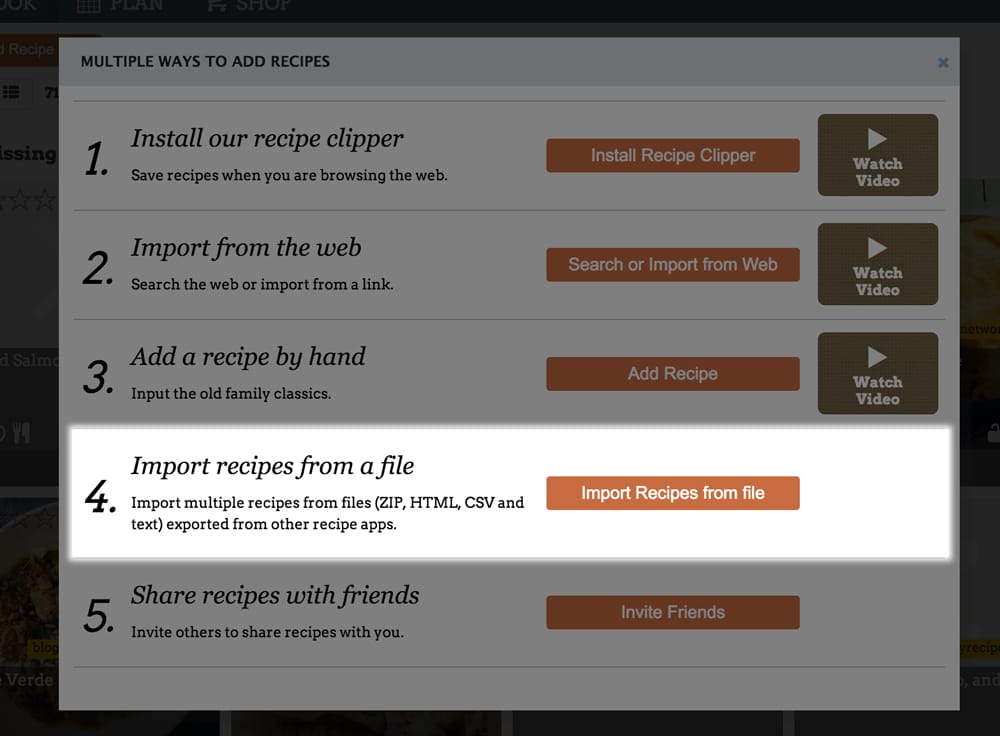
1. Navigate to the Add Recipes window in your Recipe Book and choose the Import from File option.
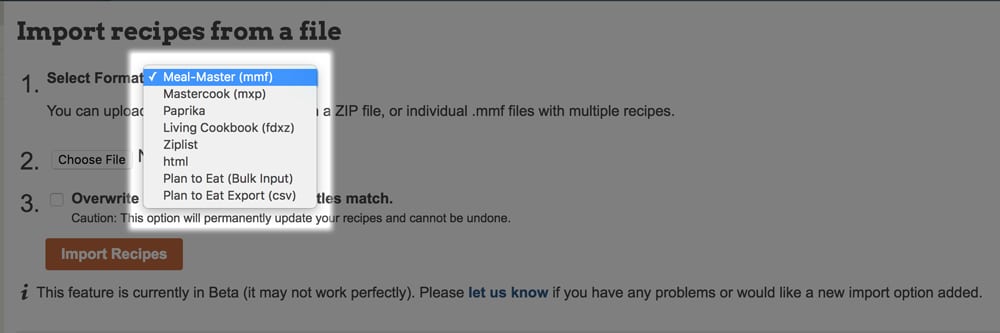
2. Select your file format from the drop down menu. Currently, we support files that have been exported from the following: Meal Master (mmf), Master-Cook (mxp), Paprika, Living Cookbook (fdxz), Ziplist, html, and Plan to Eat.
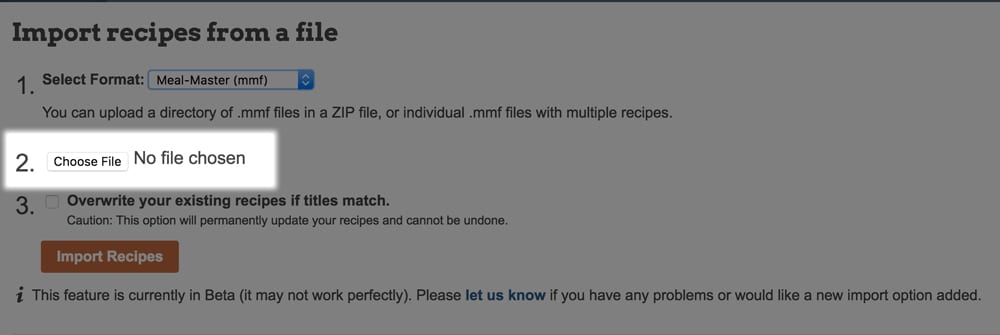
3. After choosing your file type, use the Choose File button to import the file from your computer.
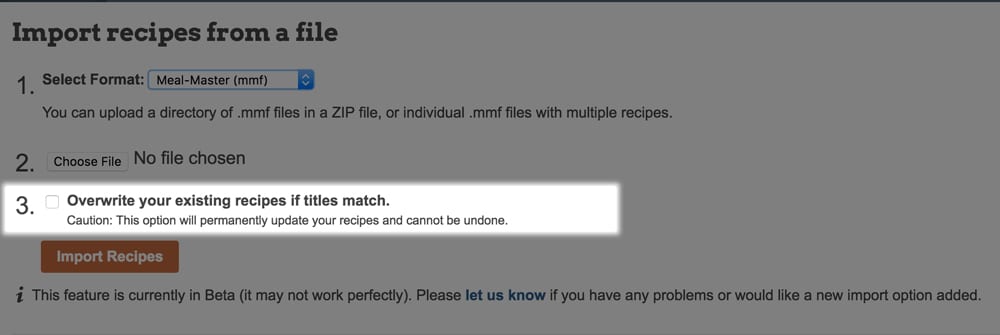
4. By default, recipes being imported with the same title as recipes already in your recipe book will not be imported. However, you can select to overwrite existing recipes in your recipe book if your titles match by placing a checkmark next to that option in the import. With this checked, recipes in your recipe book that have the same titles as recipes being imported, will be replaced by the recipes being imported. This cannot be undone.
5. Press Import Recipes to begin the import process!
6. At the bottom of this screen you will be able to visually see your recipes importing. If there are any issues or if a recipe fails to import, you will see a notification to the right of the recipe title.
Feel free to leave this page and come back at any time to check the progress of your recipes. Exiting this page will not hinder the import.
Please let us know if you need help importing your recipes into Plan to Eat. We can’t guarantee that all file formats will be compatible, but we’ll do what we can to help you get set up.